
Authentication - Authorization Code Grant OAuth Flow
Setting up your Docusign Sandbox account to allow you to send test document signing requests from the fmESignature Link file only takes a few minutes – you need to complete the following steps:
- create your free Docusign Sandbox account
- create a new API App and Integration Keys in the Sandbox
- copy/paste the keys into the fmESignature Link (DocuSign Edition) Accounts screen
We have a short video demonstrating the setup of the DocuSign Sandbox and creating a new API integration – check out the videos page to view this video (YouTube link). The Docusign eSignature REST API 101 guide also has details on creating your first API integration.
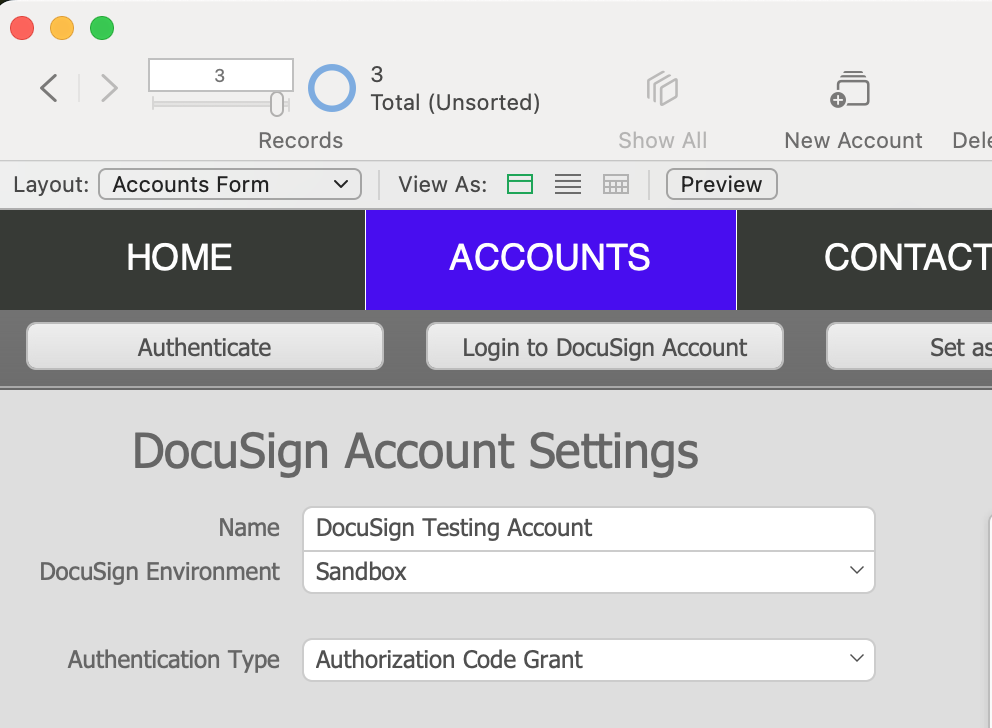
Once you’ve created your free Developer Sandbox Account you need to first create the Integration Key that you will use with the fmESignature Link file. We recommend having the fmESignature Link file open at the same time on the ACCOUNTS screen so you can copy/paste keys from your Sandbox account directly to FileMaker. We create a blank records in the Accounts table for you to use named '"DocuSign Testing Account'. You can also create a new record in the Accounts table if you prefer.
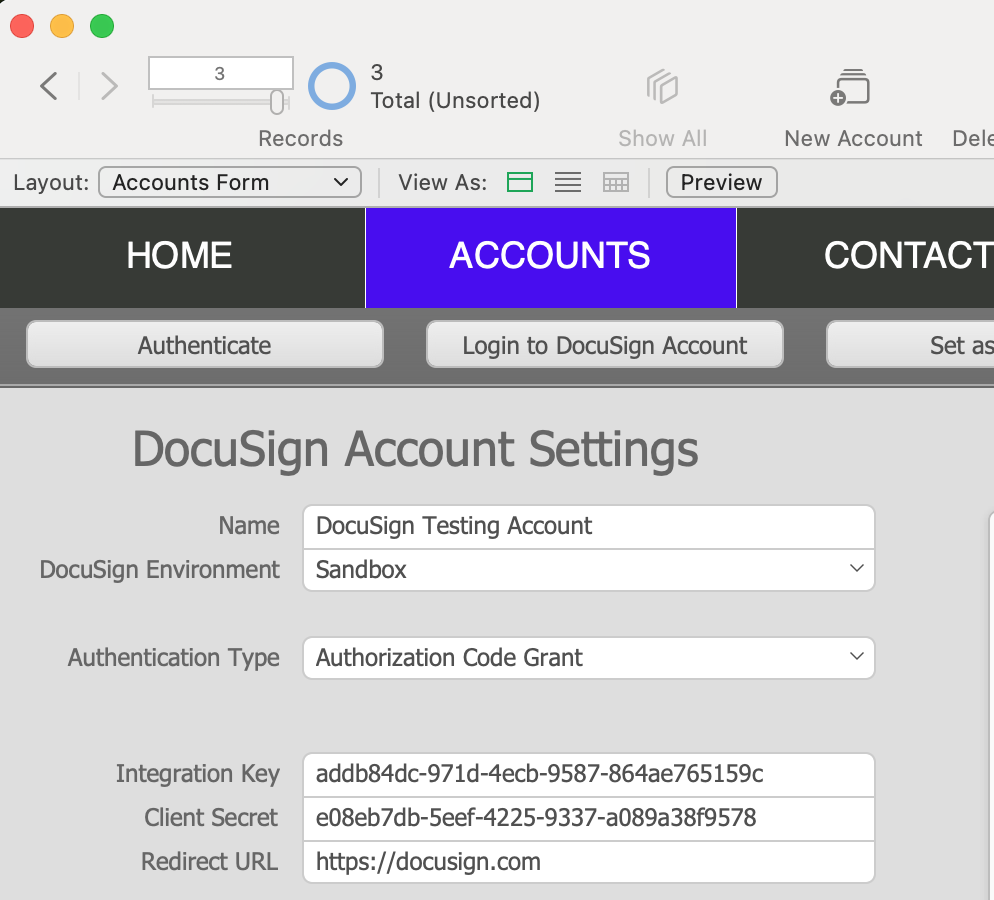
In the Accounts Form layout enter the Name for your reference, make sure the Docusign Environment is set to Sandbox and select Authorization Code Grant from the Authentication Type menu:
After you have logged in to your Sandbox account select Admin from the navigation menu across the top:

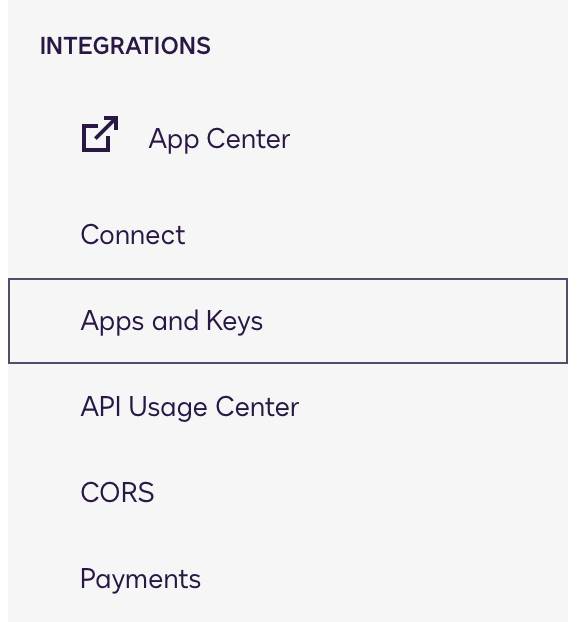
On the left side of the Admin screen select Apps and Keys to view your existing API apps and create a new set of API keys.
Click the Add App and Integration Key button to create a new Sandbox App:
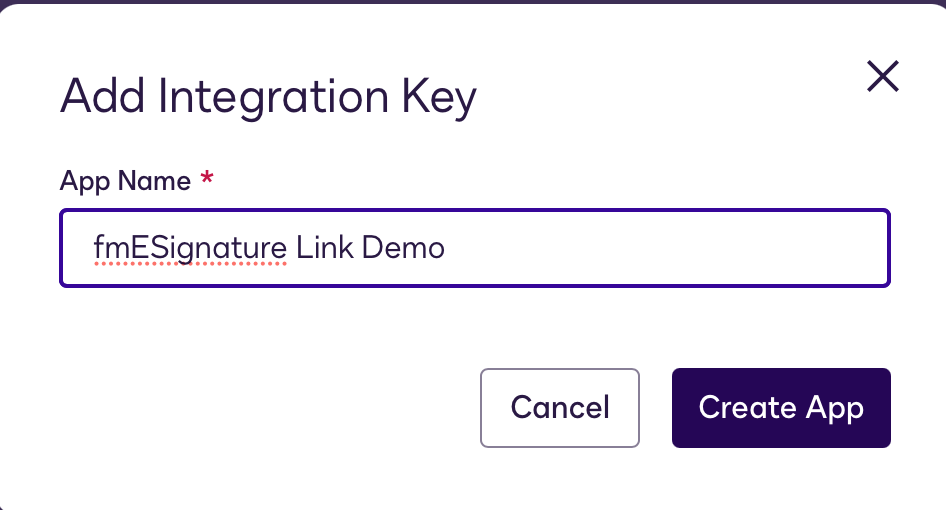
Give your App a Name and click the Create App button to proceed:
In the General Info section click the button next to the Integration Key to copy the Integration Key to the clipboard and paste this into the Integration Key field in the Accounts Form layout. For the Integration Type select the Private custom integration option.
In the Authentication section select Yes for the Is your application able to securely store a client secret question. Click the Add Secret Key button to generate a new key. Copy and paste this into the Client Secret field in the Account Settings. N.B. the Client secret will only ever be displayed once and will not be visible once you click the Save button (you can always generate a new secret if necessary).
Under Additional Settings click the ADD URI button to create a new Redirect URI. We recommend using the following URI:
https://docusign.com
which is also the default value that we set for the Redirect URL field in the fmESignature Link file. If you have changed this (e.g. to your own website) copy and paste the URI into the Redirect URL field in the Account Settings. N.B. the value in the Docusign App must also be exactly the same in the fmESignature Link file (you will get an error if these are not identical).
Click Save when you have finished. The Account Settings in the fmESignature Link file should look like this:
You now need to perform a one time authorisation to grant approval to fmESignature Link to use the Docusign App you have just created. Click the Authenticate button in the top left hand corner which will open a new Card window and take you to the Docusign login page where you can login and grant approval to the fmESignature Link file in a FileMaker WebViewer:
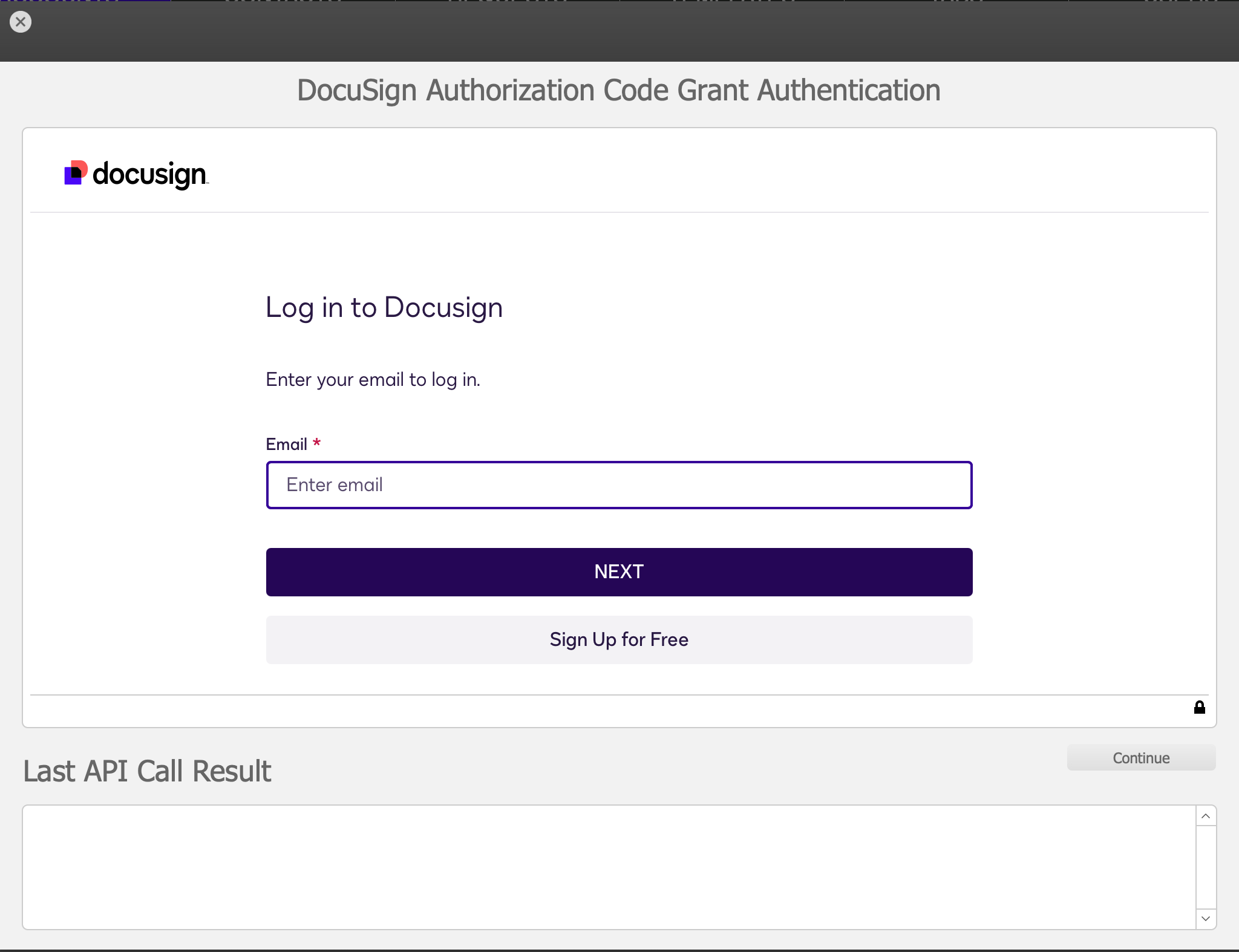
Enter your Docusign Sandbox credentials (you might be prompted to verify the device if Docusign recognises that you are logging in from a new device or browser - you will be prompted to enter a code that is sent to your email).
If you have entered the Client Secret or Integration Key incorrectly you will get an error like this:

Double check that you have entered the Integration Key, Client Secret and Redirect URI correctly and not made any errors when copy/pasting these across to the fmESignature Link file.
If this is the first time you have attempted to authenticate the DocuSign App you will also be prompted to provide consent:
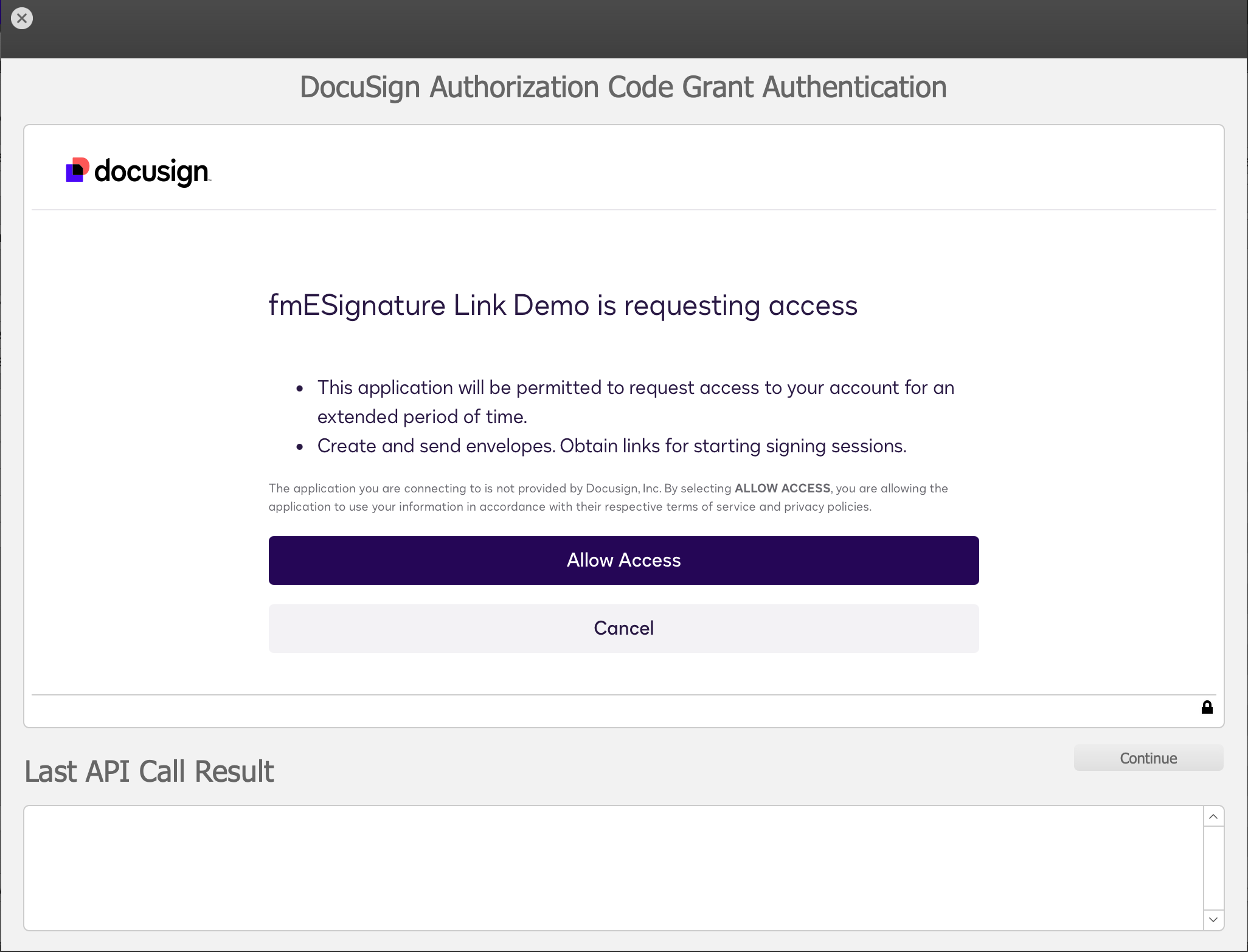
Click Allow Access when prompted to provide consent for the fmESignature Link file to create and send envelopes using the Docusign API on your behalf.
Once you have successfully authenticated with Docusign you will then be taken to the Redirect URI you entered for your Docusign App:
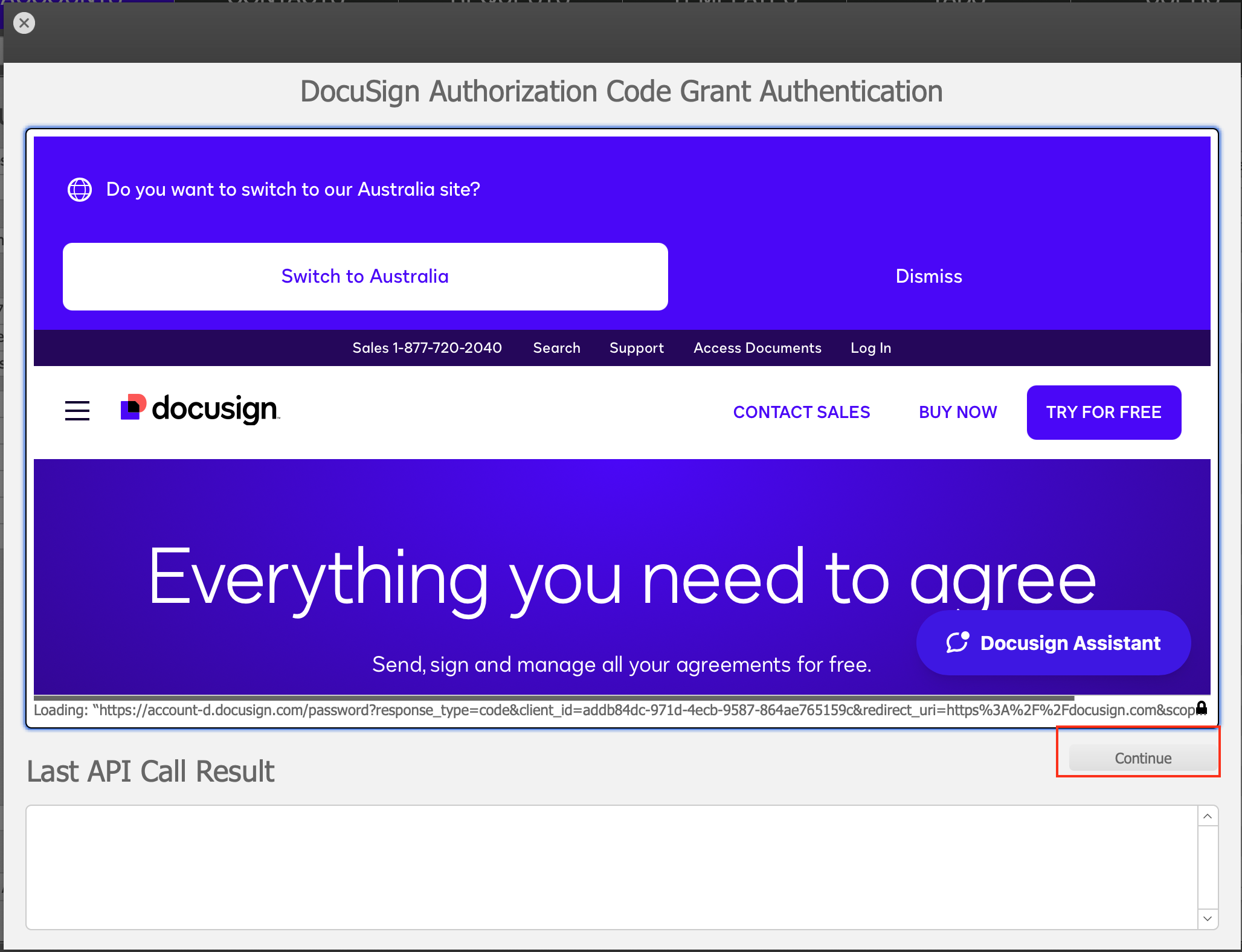
To complete the Authorization Code Grant OAuth flow click the Continue button in the bottom right hand corner of the Web Viewer which will exchange the code for an Access Token and generate the following:
- Access Token
- Expires At (uses the FileMaker Server timestamp to handle users in multiple time zones)
- Refresh Token
- Base URI
- API Account ID
- Account Name
which are saved to their corresponding fields in the Account Settings:
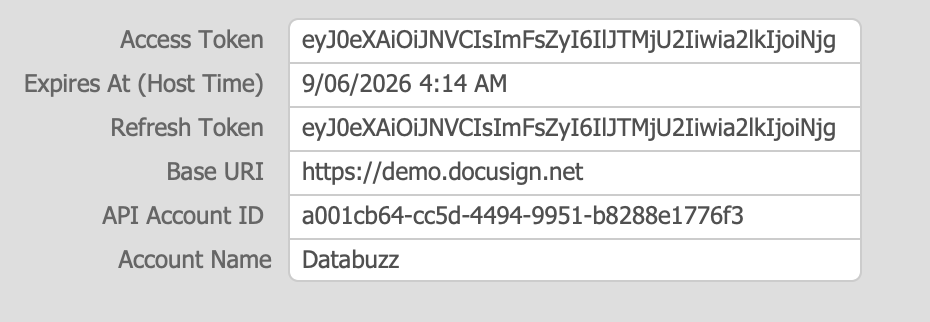
If your Docusign Sandbox user login has access to more than one Docusign Sandbox account you will also be presented with another window for you to select which Docusign account you wish to use:
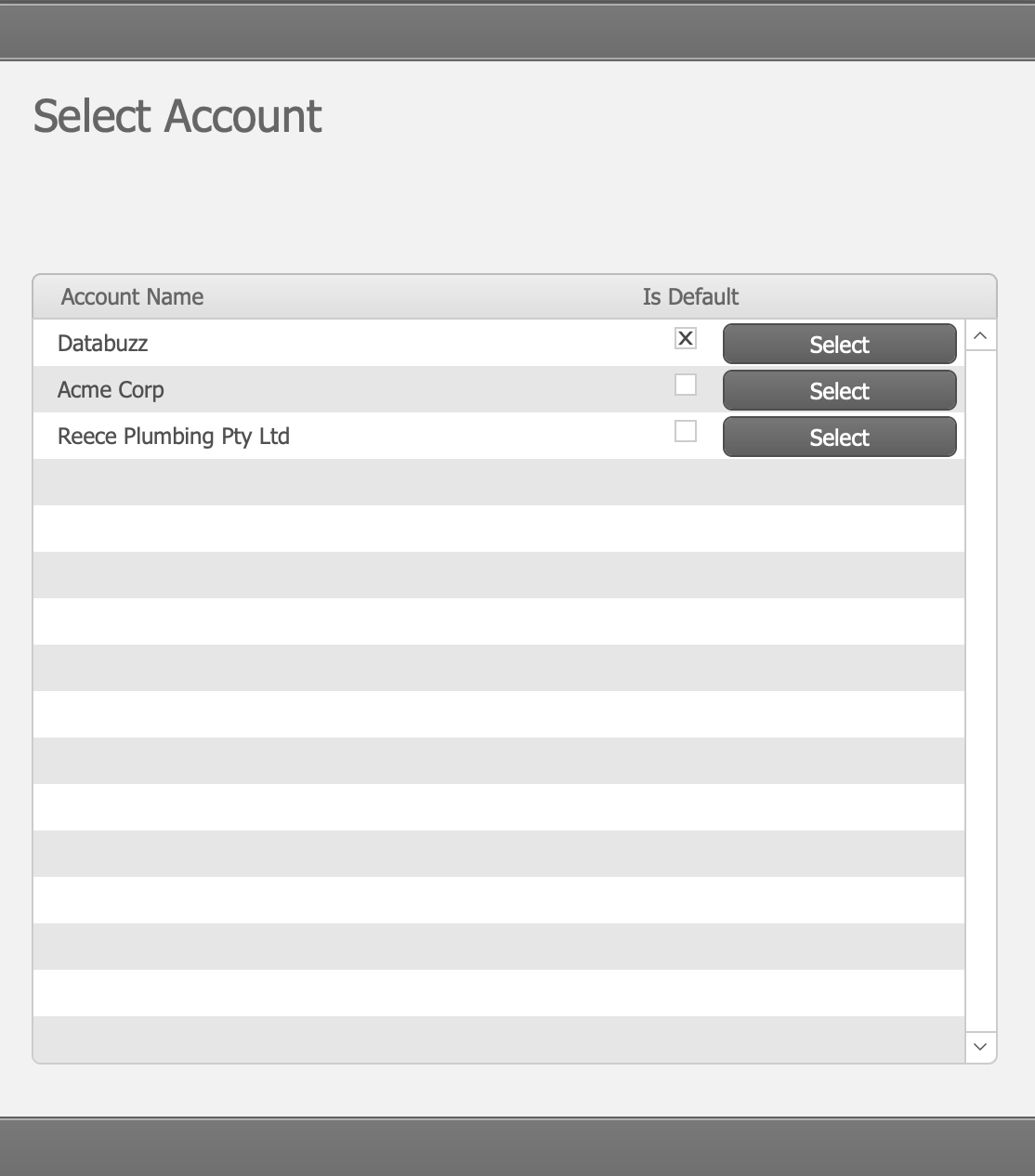
If you are presented with this just click the Select button to the right of the Docusign account you wish to use.
These will be used to authenticate with your Docusign app from now on – you won’t be required to login to the Docusign website unless your Refresh Token expires or your tokens are otherwise revoked. Access Tokens expire after 8 hours (we keep track of this in the Expires At field) and can be refreshed automatically using the Refresh Token. Refresh Tokens expire after 30 days: if you don’t refresh your access token within 30 days you will need to click the Authenticate button and reauthorise the app. You can also schedule the DocuSign Authentication - OAuth 2.0 Refresh Access Token FileMaker script to be performed on a schedule (e.g. daily or weekly) to ensure the Tokens do not expire).
We also recommend clicking the Set as Default button at the top of the screen to make this the default Account so you don't need to keep selecting the associated account when working with Templates and Requests.