
Sending Requests for Payment
fmESignature Link allows you to send signing requests and also request a payment from the recipient - this has the advantage of being able to include payments as part of your existing Docusign eSignature workflows and not have to request a payment separately from the recipient after they have signed your agreement.
Setup List of Payment Gateways
You will first need to add a Payment Gateway to your DocuSign account - see Managing Payment Gateways in the DocuSign Support Center for the details on this. Currently Stripe, Braintree, and Authorize.net are the supported payment gateways - you will need an account with one of these (trial accounts are available for use with the Sandbox).
Once you've setup your Payment Gateway in your DocuSign account you first need to go to the Accounts Settings screen and click the Download Payment Gateways button on the Payment Gateways tabto download the list of Payment Gateways from DocuSign for your Account:

Create the Template for the Payment Request
fmESignature Link includes a Template that demonstrates how to include a Payment request: Auto Place Agreement with Payment:

This Template was duplicated from the Auto Place Agreement and works in a very similar way. We have created a new layout that includes an additional Auto Place tag highlighted in red here:

This is used by the Number Tab to populate the amount for the Payment (we're using a merge field to populate this from the <<RequestsContacts::AmountDue>> field) using the standard auto place settings:

Note the value for the Tab Label for the Number tab is set to PaymentFixedAmount - this will be used when generating the Formula as it will reference this field to determine the payment amount.
To generate the Payment request you need to include a Formula Tab which is hidden - note that the Pixels from Top/Left are both set to 0. If you click the Formula popover button:

you can view/edit the Formula Settings:
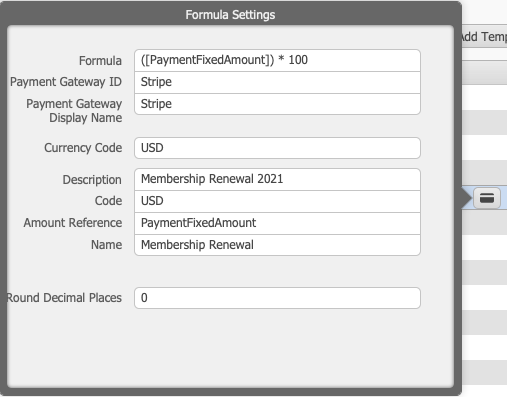
Note that we are referencing the Tab Label for the Number field in our Formula. You select the Payment Gateway to use using the drop down menu and then enter the values for the Currency Code, Description, Code, Amount Reference, Name and Round Decimal Places.
Sending a Signing Request with Payment
The process for sending a signing request which includes a Payment request is similar to any other request except that you can now specify some additional values for the Payment for each Recipient for you Request. After you have added a Recipient for the request you can click the Payment Settings button to enter the Invoice # reference and Amount Due for the Payment:

When the recipient views the Agreement the amount owing will appear in the specified currency:

When the recipient has finished signing the Agreement they are then prompted for the payment details:

Until they complete the Payment request the Agreement is not finalised.
We have a video demonstrating this in action on the fmESignature Link Videos page.
You can get more information on DocuSign Payments at the following links: