
Sending Envelope Signing Requests On Behalf of Another User
By default the Sender of the DocuSign Signing Request is determined by the DocuSign User that was used to authenticate with the DocuSign API (using either the Authorization Code Grant Flow or the JWT Grant OAuth Flow). The name and email address corresponding to the sending DocuSign user account will always be shown on/for sent envelopes.
One advantage of using the JWT Grant authentication method is that it allows you to programmatically impersonate the different account users and to send envelopes on their behalf (SOBO).
To setup the SOBO functionality you will need to complete the following steps:
Setup Authentication using the JWT Grant OAuth Flow: you will need to create an Accounts table record that is set to authenticate using the JWT Grant method. See the separate guide for authenticating using the JWT Grant.
Download Users from Docusign: once you have successfully authenticated with Docusign using the JWT Grant method you will then be able to download the list of users for your Docusign account. On the Accounts Settings record for your JWT Grant authentication record click the Download All Docusign Users button on the Users tab highlighted below:

This will download all Users from your Docusign account that you authenticated with. Before you can send an envelope on behalf of another user you will need all the users that you wish to impersonate to grant consent to allow the fmESignature Link file to make API calls on their behalf (similar to when you granted consent when authenticating for the first time). Click the Copy Application Consent URL button at the top of the screen and send this to the users you wish to impersonate. When they open this link in their web browser it will take them to a page like this where they can grant consent:
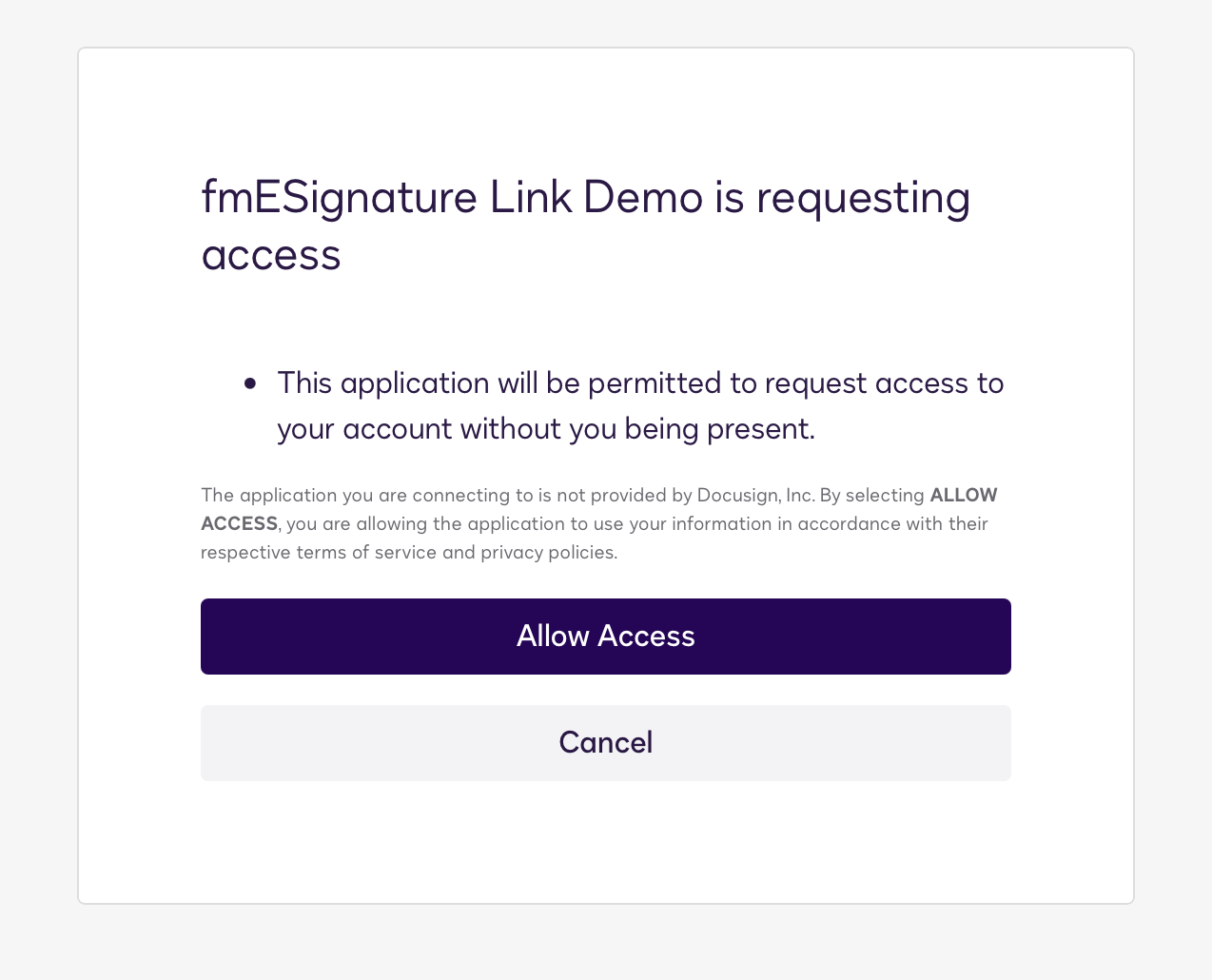
Each user should click Allow Access when prompted to provide consent for the fmESignature Link file to create and send envelopes using the DocuSign API on their behalf. Once a user has granted consent you will be able to send an Envelope signing request on their behalf.
Generate an Access Token for Each User: for the users that you wish to impersonate you will then need to generate the initial Access Token for them once they have granted consent. To create an Access Token navigate to the individual User record and click the Authenticate (JWT Grant) button at the top of the screen highlighted below:

If this is successful it will populate the Access Token, Expires At and Base URI fields.

If the User has not previously granted consent you will get the following response error:
{
	"error" : "consent_required"
}
Specifying the Sender for a Request: when you create a new Requests record and select an Account that uses the JWT Grant authentication method you will see another field named Sender User ID highlighted below:
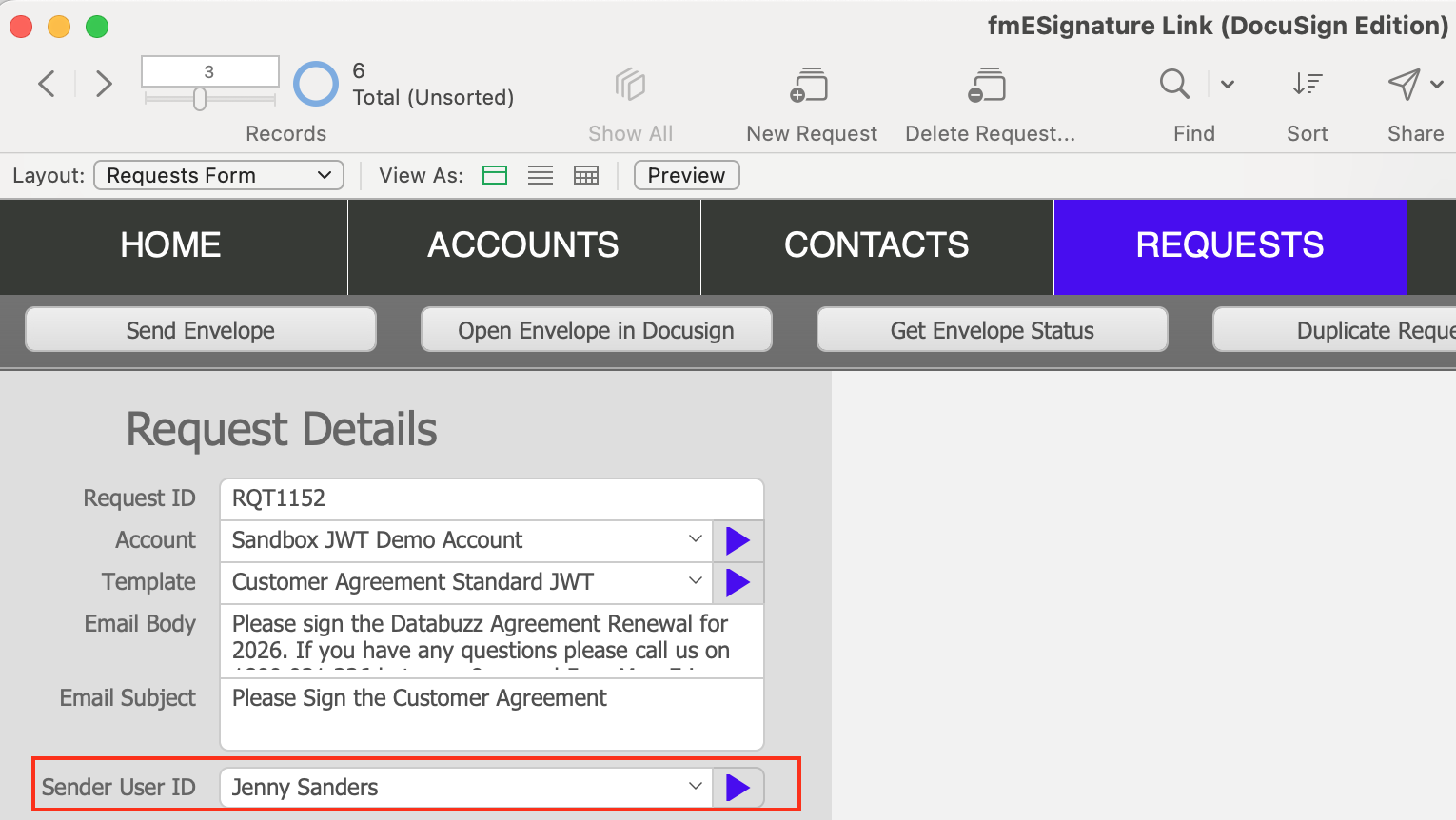
You can select a different Sender from the drop down menu. When you send the envelope it will use that User as the Sender instead of the default user that performed the initial authentication (as long as that user has granted consent and you have generated an initial Access Token for their User record). It will also generate a new Access Token if required for that User.
We have a short video demonstrating the Send On Behalf Of feature – check out the videos page to view this video (YouTube link). You can get more information about the Send On Behalf Of feature on the Docusign website here:
From the Trenches: OAuth 2.0 and the new SOBO